

Guide
1
Create Okta Application
Navigate to the Okta Admin Console → Applications → Create App Integration.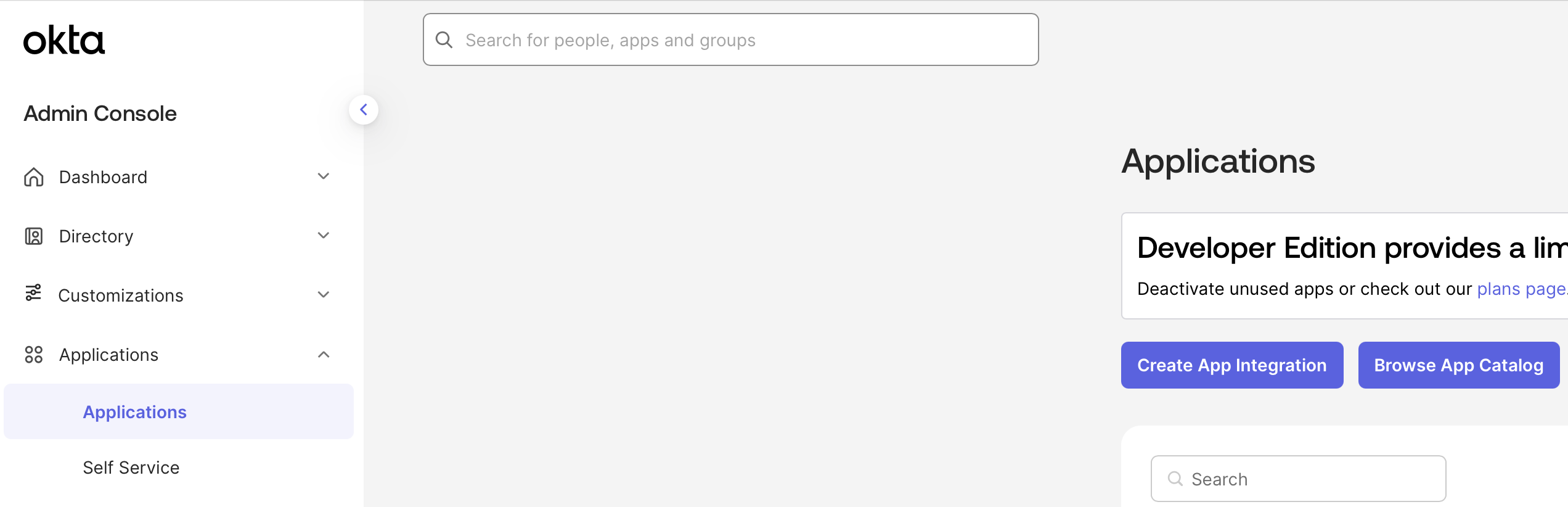
2
Configure Okta Application
Select OIDC and Web Application.Name your application Determine whether all users or select groups may access Onyx or skip this step and assign users later.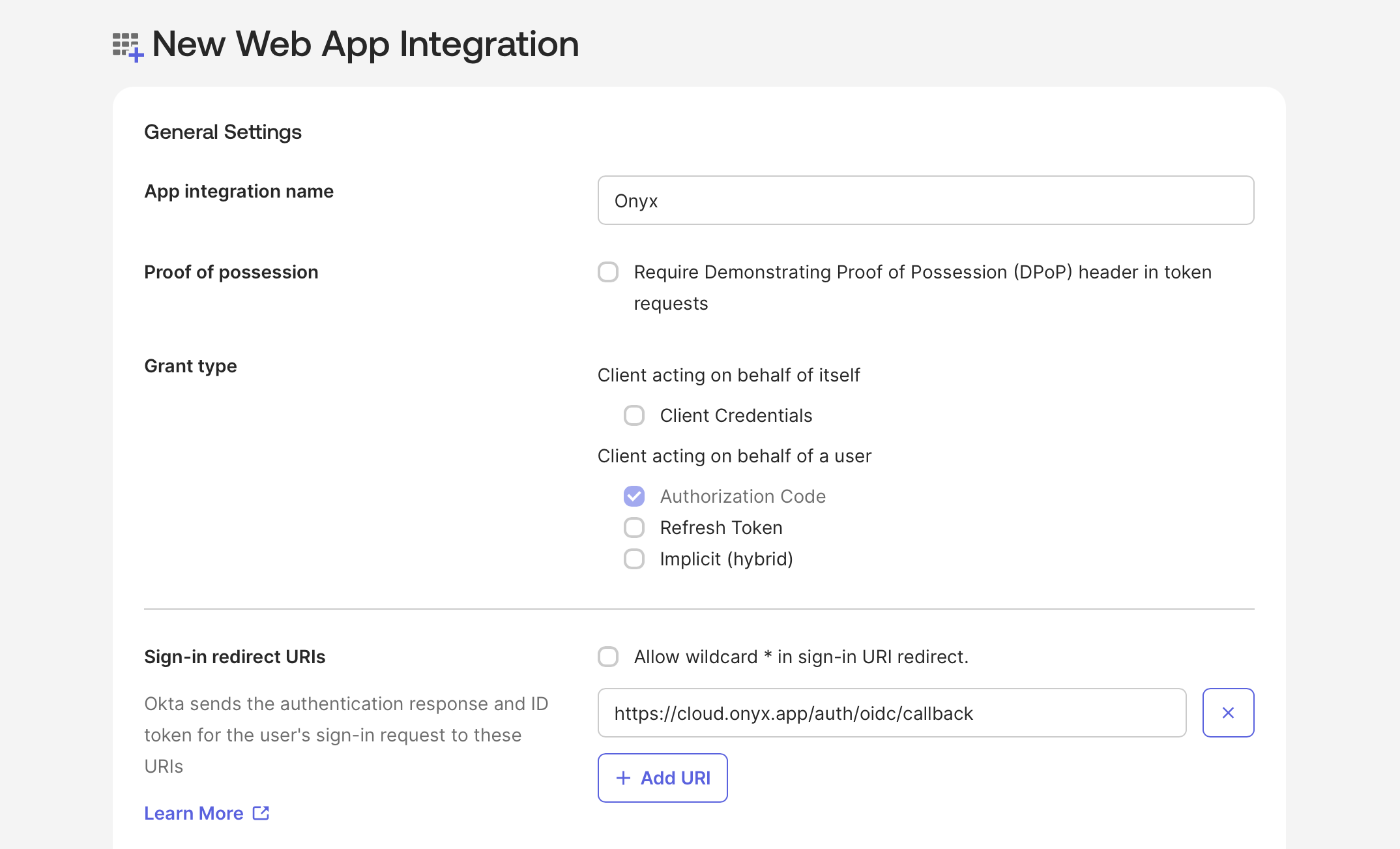
Onyx.Add a Sign-in redirect URI using the name you will give the provider in Onyx (a lowercase slug, e.g. okta):3
Save OIDC Credentials
Create the new Application and save the Client ID and Client Secret.Also note your Okta Base URL in the format of 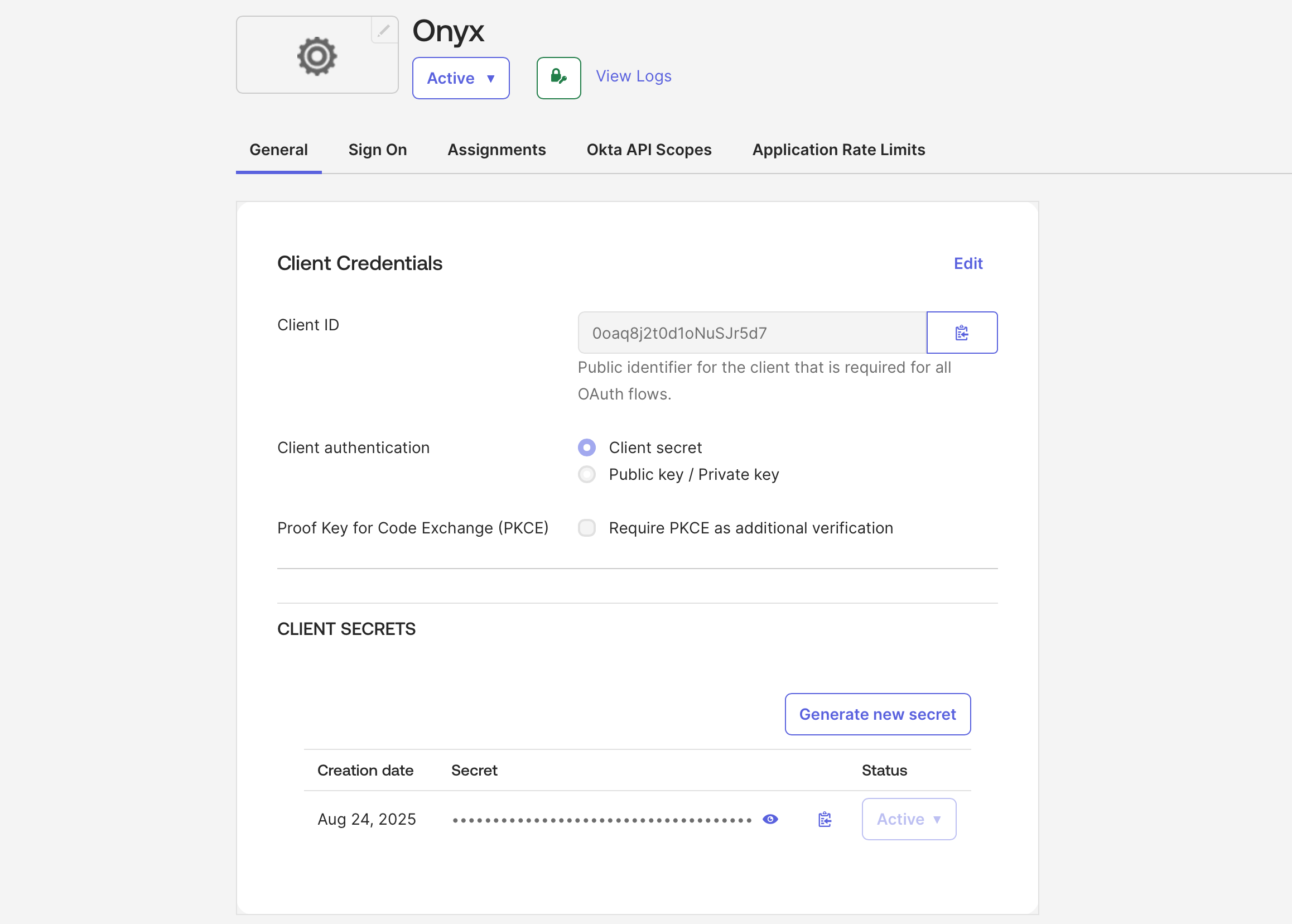
https://<YOUR_ORG_NAME>.okta.com.After saving your application,
you can upload the Onyx logo or your white-labeled logo by clicking the gear icon next to the app title Onyx
4
Add the Provider in Onyx
Navigate to Admin Panel → Organization → SSO Providers
and click Add Provider.Select the OIDC provider type, enter the Name you used in the redirect URI, and paste the Client ID,
Client Secret, and the OpenID configuration URL:After creating the provider, its row shows the exact Redirect URI.
Confirm it matches what you registered in Okta, then sign in through the new option on the login page.
Customizing requested scopes
By default, Onyx uses the standard OIDC base scopes when redirecting users to the identity provider. Overriding the list is primarily useful when the access token issued at login should be passed through to tool calls that need additional scopes from the identity provider. Starting inv4.5, set Scopes on the provider entry (Admin Panel → Organization → SSO Providers)
to override the list per provider. A provider’s Scopes take precedence. When left empty,
the deployment-wide environment variable applies, then the built-in defaults.
On v4.4.x, the only override is the deployment-wide OIDC_SCOPE_OVERRIDE environment variable,
a comma-separated list that applies to every OIDC provider:
.env
offline_access so refresh tokens are issued, even if it is not in the override list.
Any scopes you add here must also be enabled on the application in your identity provider.
Onyx only changes what is sent in the authorize request;
the IdP still rejects scopes that are not configured for the client.
Enabling PKCE
PKCE is disabled by default to preserve backwards compatibility with existing OIDC deployments. Starting inv4.5,
turn on Enable PKCE on the provider entry (Admin Panel → Organization → SSO Providers).
On v4.4.x, the deployment-wide OIDC_PKCE_ENABLED environment variable enables it for all providers:
.env
Upgrading from v4.3 or Earlier
Versions beforev4.4.0 configured a single OIDC provider through environment variables,
using the redirect URI https://YOUR_ONYX_DOMAIN.com/auth/oidc/callback.
On v4.4.0 and later these variables no longer enable OIDC login, and they are planned for full removal in v4.5.
New installs must use the admin panel flow above.
When you upgrade an existing deployment,
its environment-based configuration is imported into an SSO provider entry automatically,
and existing logins keep working. The import runs once, when the upgrade first runs against your existing database,
so keep the configuration in place through the upgrade.
The migrated provider keeps using the redirect URI already registered with your IdP,
so nothing changes on the IdP side. Once the migrated provider appears in the admin panel,
sign-ins and token refresh use the provider entry’s credentials, and
AUTH_TYPE, OAUTH_CLIENT_ID,
OAUTH_CLIENT_SECRET, and OPENID_CONFIG_URL can be removed.
The variables only act as a fallback for login accounts that no provider entry matches,
such as after deleting or renaming the migrated provider.v4.4.0 configuration looks like:
.env
values.yaml