
The Onyx Website Widget allows you to embed AI-powered chat directly on any website. Features include:
  • Lightweight ~100-150kb gzipped bundle
  • Fully customizable colors and branding
  • Responsive design (desktop popup, mobile fullscreen)
  • Real-time streaming responses via SSE
  • Session persistence across page reloads

Deployment Options

For Onyx Cloud users, the widget is served from Onyx’s CDN. Simply add the following to your website:
<!-- Load the widget -->
<script type="module" src="https://cdn.onyx.app/widget/1.1/dist/onyx-widget.js"></script>

<!-- Configure and display -->
<onyx-chat-widget
  backend-url="https://cloud.onyx.app/api"
  api-key="your_api_key_here"
  mode="launcher"
>
</onyx-chat-widget>

Self-Hosted Deployment

For self-hosted Onyx instances, you’ll need to build and host the widget yourself.
1

Clone the repository

Clone the Onyx repository from GitHub.
2

Navigate to widget directory

cd widget/
3

Install dependencies

npm install
4

Obtain a widget API key

Navigate to your Onyx admin panel and create a new API key specifically for the widget.Creating a widget API key in the Onyx admin panel
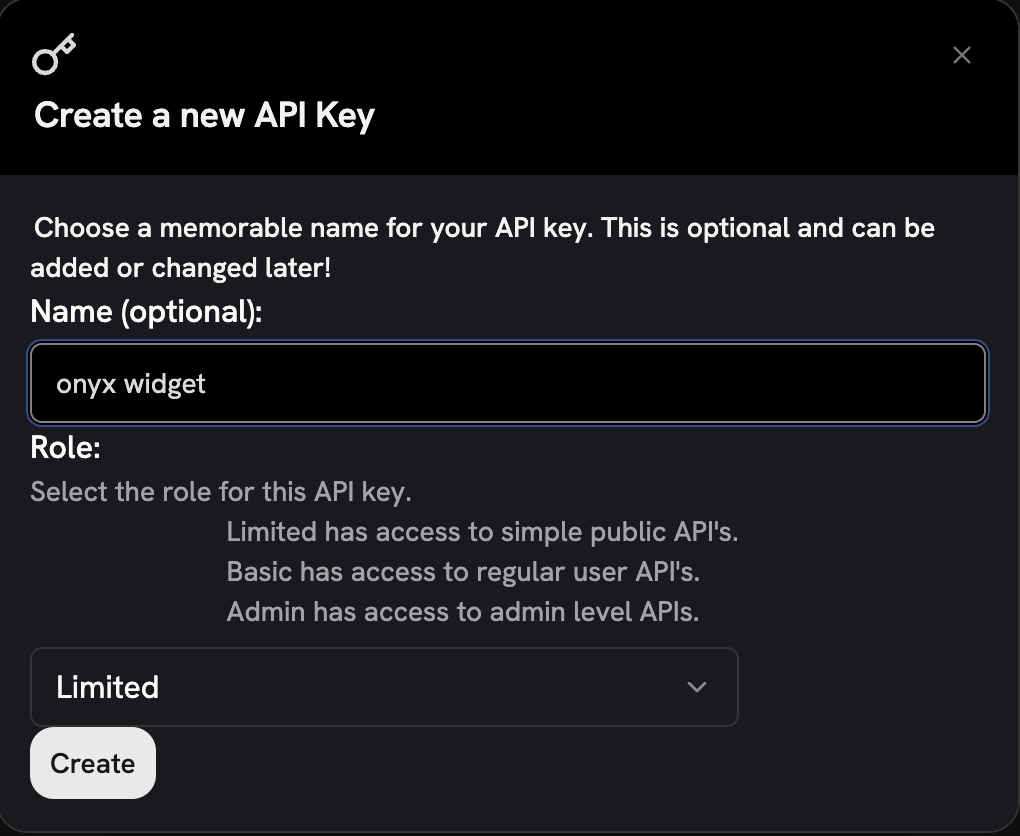
Create a limited-scope API key with only chat permissions. Never use admin or full-access keys since the API key will be visible in client-side code.
5

Configure environment (optional)

For builds with baked-in configuration, create a .env file:
cp .env.example .env
Edit .env and set your backend URL and API key:
VITE_WIDGET_BACKEND_URL=https://your-backend.com
VITE_WIDGET_API_KEY=your_api_key
6

Build the widget

For cloud-style deployment (config via HTML attributes):
npm run build:cloud
For self-hosted deployment (config baked into bundle):
npm run build:self-hosted
7

Deploy the bundle

Upload dist/onyx-widget.js to your CDN or web server.

Customer Embed Code

After deployment, provide customers with the embed code: Cloud-style (attributes required):
<script type="module" src="https://your-cdn.com/onyx-widget.js"></script>
<onyx-chat-widget
  backend-url="https://your-backend.com"
  api-key="customer_api_key"
  agent-name="Support"
  logo="https://path-to-your-logo.com/"
>
</onyx-chat-widget>
Self-hosted (config baked in):
<script type="module" src="https://your-cdn.com/onyx-widget.js"></script>
<onyx-chat-widget
  agent-name="Support"
  logo="https://path-to-your-logo.com/"
>
</onyx-chat-widget>

Configuration Reference

Required Attributes

AttributeTypeDescription
backend-urlstringYour Onyx backend API URL
api-keystringAPI key for authentication

backend-url

The URL of your Onyx backend API. This is where the widget sends chat requests.
  • Onyx Cloud: Use https://cloud.onyx.app or your tenant-specific URL
  • Self-hosted: Use your Onyx instance URL (e.g., https://onyx.yourcompany.com)
<!-- Onyx Cloud -->
<onyx-chat-widget backend-url="https://cloud.onyx.app/api" ...></onyx-chat-widget>

<!-- Self-hosted -->
<onyx-chat-widget backend-url="https://onyx.yourcompany.com" ...></onyx-chat-widget>

api-key

A valid Onyx API key for authenticating widget requests. This key is visible in client-side code, so always use a limited-scope key.
<onyx-chat-widget
  backend-url="https://cloud.onyx.app/api"
  api-key="on_abc123xyz789"
  ...
></onyx-chat-widget>
For self-hosted builds with baked-in config, backend-url and api-key can be set via environment variables during build instead of HTML attributes.

Optional Attributes

AttributeTypeDefaultDescription
agent-idnumberundefinedSpecific agent/persona to use
agent-namestring"Assistant"Display name in header
logostringOnyx logoURL to custom logo image
primary-colorstring#1c1c1cPrimary brand color (buttons, accents)
background-colorstring#e9e9e9Widget background color
text-colorstring#000000bfText color (75% opacity black)
modestring"launcher"Display mode: "launcher" or "inline"
include-citationsbooleanfalseShow citation badges linking to source documents

include-citations

When enabled, assistant messages display clickable citation badges below the response text. Each badge shows a sequential number and the source document title, linking directly to the original document.
<onyx-chat-widget
  backend-url="https://cloud.onyx.app/api"
  api-key="on_abc123"
  include-citations="true"
>
</onyx-chat-widget>
Be mindful of document access when enabling citations. The widget will cite any documents accessible to the configured agent or API key. If the agent has access to private or internal documents, citation links may point to resources that end users do not have permission to view.To avoid exposing private document links, either scope the agent’s document access to only public-facing sources, or disable citations for public-facing widget deployments.

API Key Security

The widget’s API key is exposed in client-side code. Always create a dedicated API key with:
  • Limited permissions - Only chat access, no admin features
  • Rate limiting - Prevent abuse from malicious actors
  • Monitoring - Track usage and detect anomalies
1

Create a widget-specific API key

In your Onyx admin panel, create a new API key with minimal permissions.
2

Enable rate limiting

Configure rate limits appropriate for your expected usage.
3

Monitor usage

Regularly review API key usage for unusual patterns.

Browser Support

  • Chrome/Edge 90+ (Chromium)
  • Firefox 90+
  • Safari 15+
  • Mobile Safari (iOS 15+)
  • Mobile Chrome (Android)
Need help with setup? Contact your Onyx administrator for API key configuration or deployment assistance.