

- A global shortcut that opens Onyx from any app
- Quick launch from the menu bar or system tray
- Multiple windows, with window size and position remembered between sessions
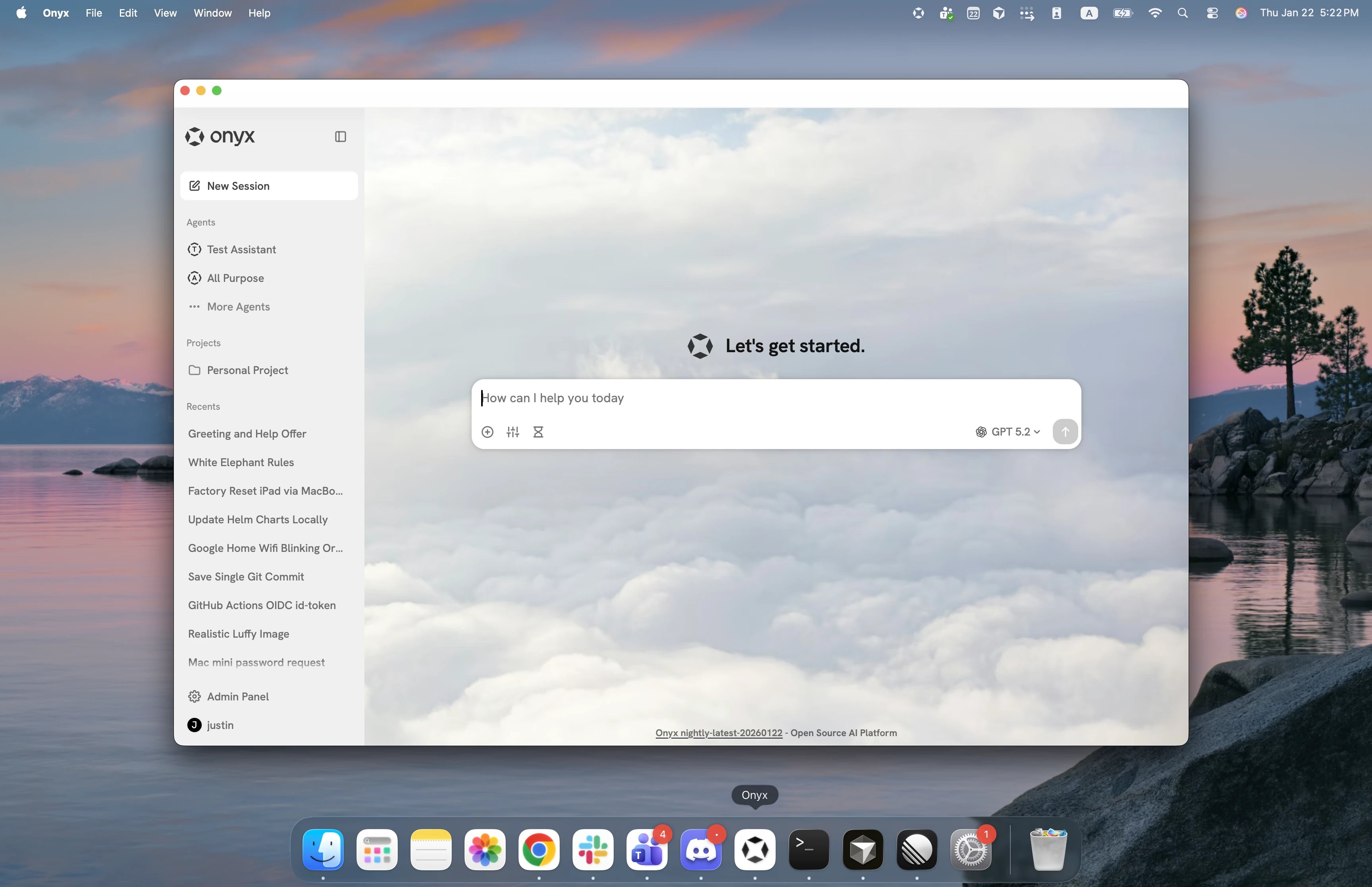
The desktop app shows the same Onyx web app in a native window. It is available on all editions.
Download
Windows
Download .exe
macOS
Download .dmg
Linux
Download .deb
Getting Started
For Onyx Cloud users: Download the app from the links above. It connects tohttps://cloud.onyx.app by default.
For self-hosted users: Point the app at your Onyx server. If the app cannot reach a server,
it shows a Settings page. Enter your server URL and select Save & Connect.
To change the server later, select File → Settings… (Cmd+, on macOS, Ctrl+, on Windows and Linux).
To go back to Onyx without a change, select File → New Chat.
You can also edit the config file. Change server_url, then restart the app:
- macOS:
~/Library/Application Support/app.onyx.onyx-desktop/config.json - Linux:
~/.config/onyx-desktop/config.json - Windows:
%APPDATA%\onyx\onyx-desktop\config\config.json
Summon Onyx from anywhere
Press the summon shortcut to bring Onyx to the front from any app:- macOS:
Cmd+Shift+Space - Windows and Linux:
Ctrl+Alt+Space
summon_shortcut in the config file.
Set it to null to turn the shortcut off.
Keyboard Shortcuts
Menus
- File has New Chat, New Window and Settings…. On macOS and Windows it also has Close Window.
- To quit the app, select File → Exit Onyx on Windows, File → Quit Onyx on Linux, or Onyx → Quit Onyx on macOS.
- Help → About Onyx Desktop shows the version of the desktop app and the server URL that the app uses. The version of the Onyx server can be different. On macOS, About Onyx Desktop is in the Onyx menu.