

Claude connects to Onyx from Anthropic’s cloud, not from your computer.
Your Onyx MCP URL must be reachable from the internet, not only through a VPN.
Add the Onyx connector
1
Open Add custom connector
Open Customize > Connectors and select + Add > Add custom connector.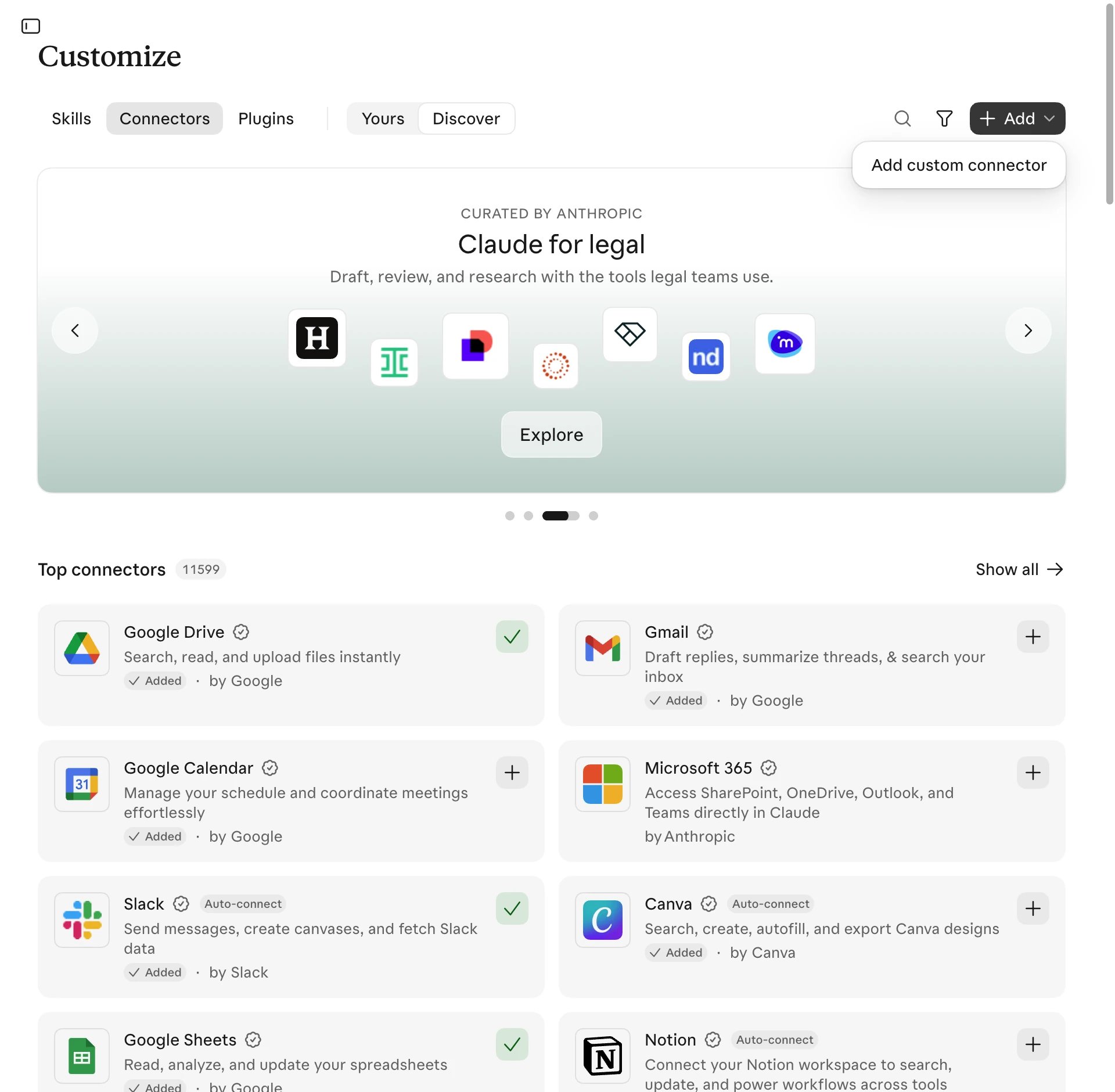
2
Enter the Onyx MCP URL
Name the connector Onyx, enter your Onyx MCP URL, and select Continue.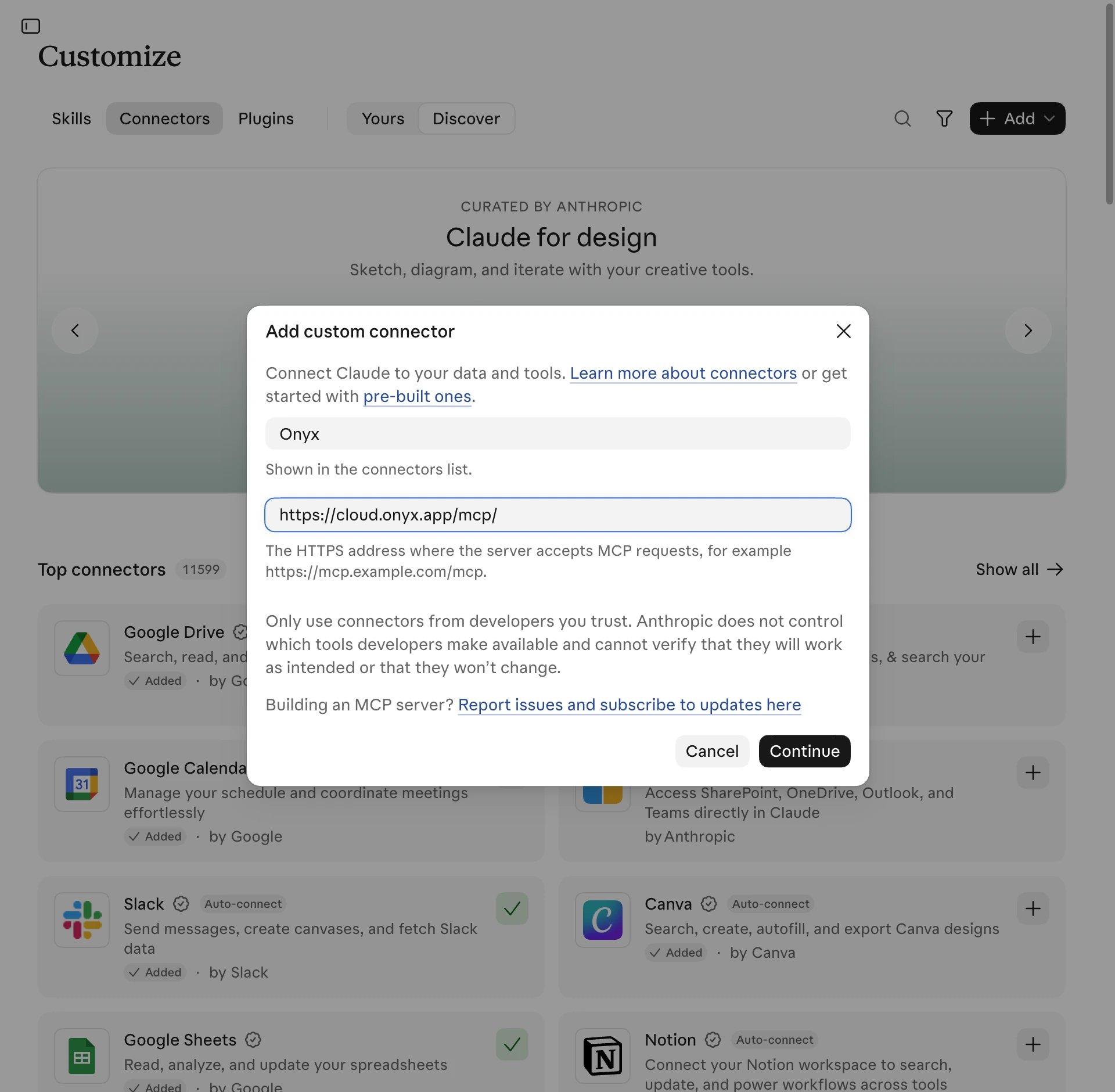
3
Keep the detected sign-in settings
Keep Sign in now and Use Claude’s published identity, which Claude marks Detected. Select Add.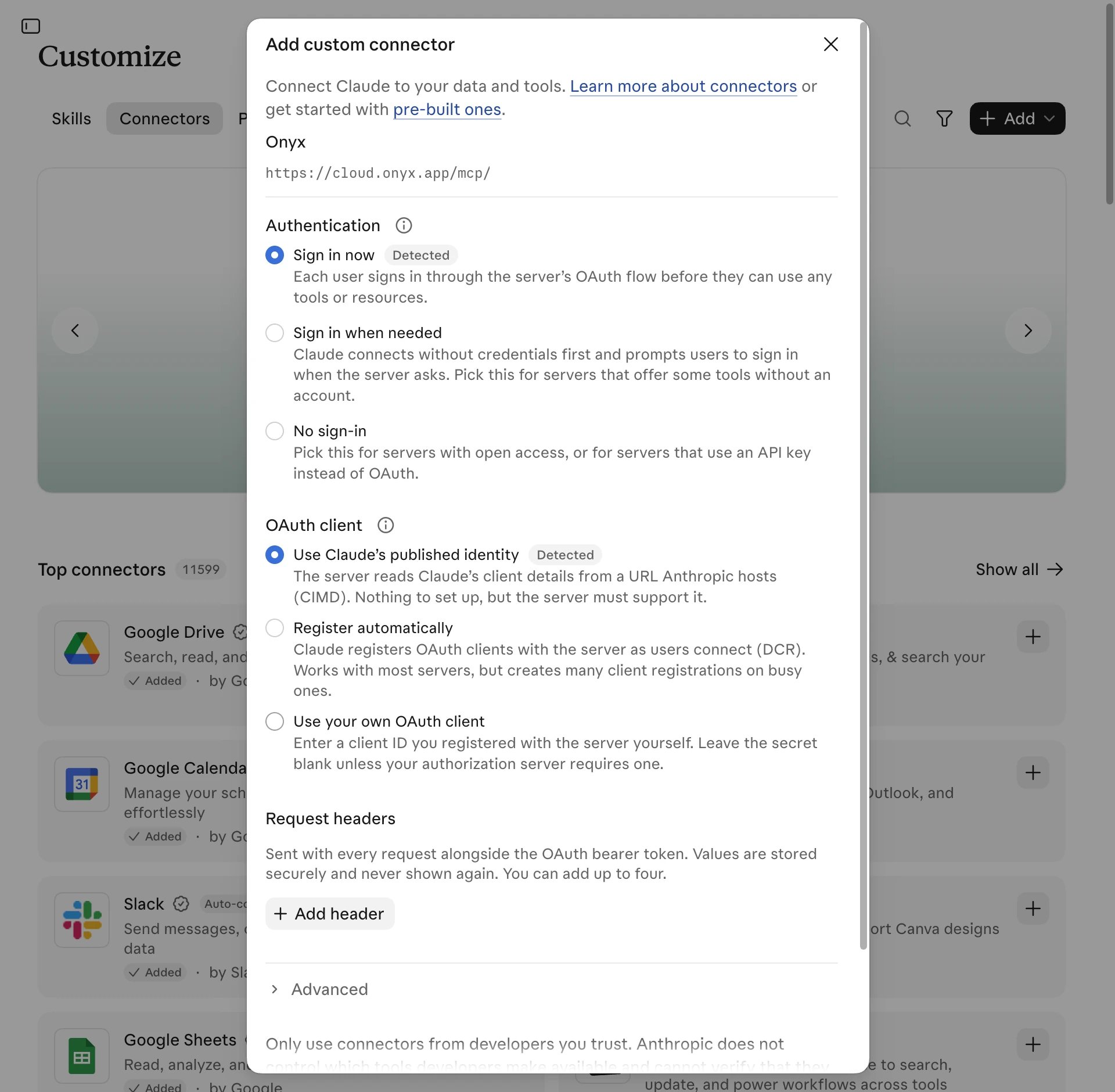
4
Sign in to Onyx
Sign in and select Allow access. If the sign-in does not open,
select Connect for Onyx under Customize > Connectors > Yours.
A check mark in Status shows that Onyx is connected.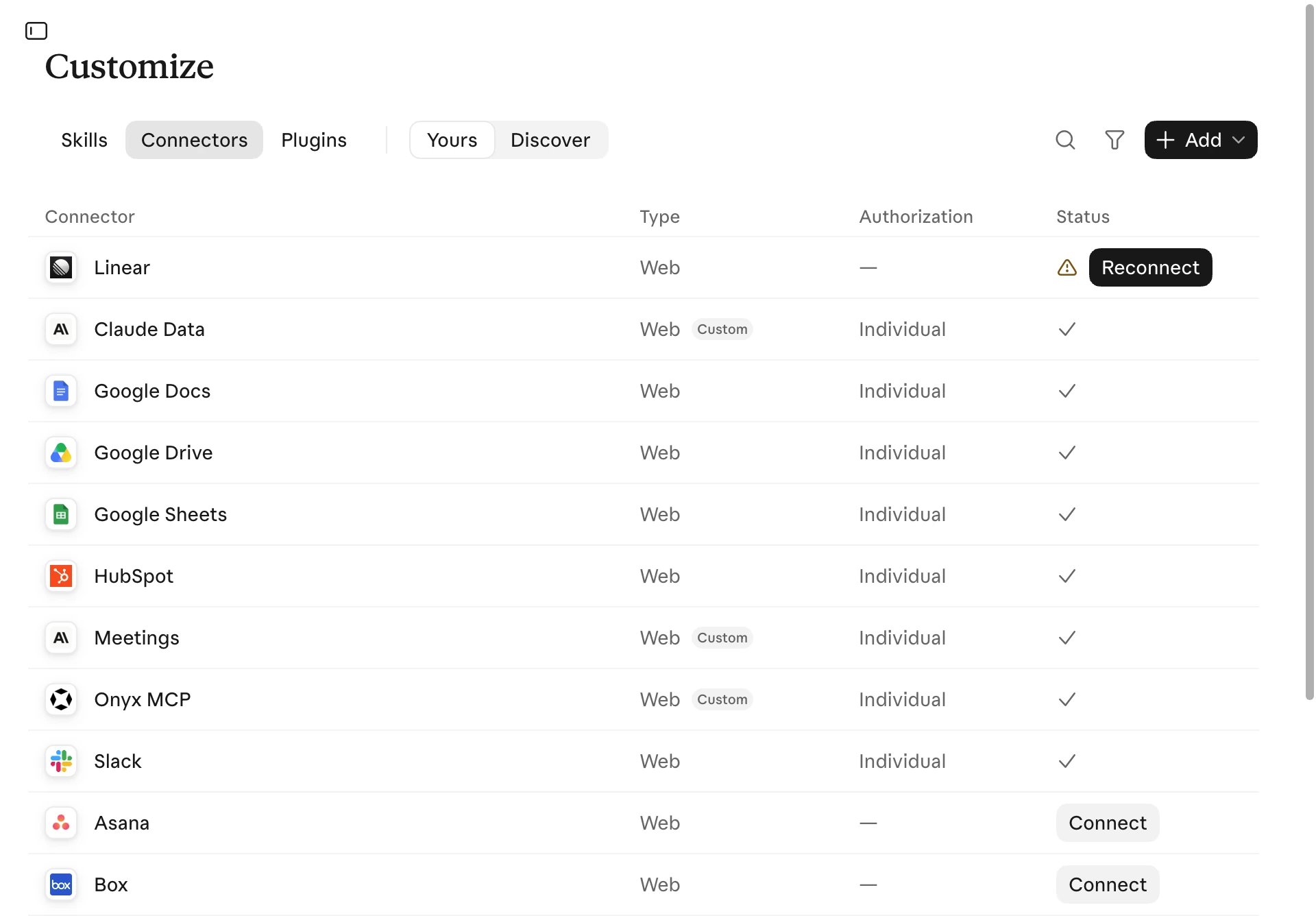
5
Check that Onyx is on
In the message box, select + > Connectors and check that Onyx is on.
Then send the test prompt.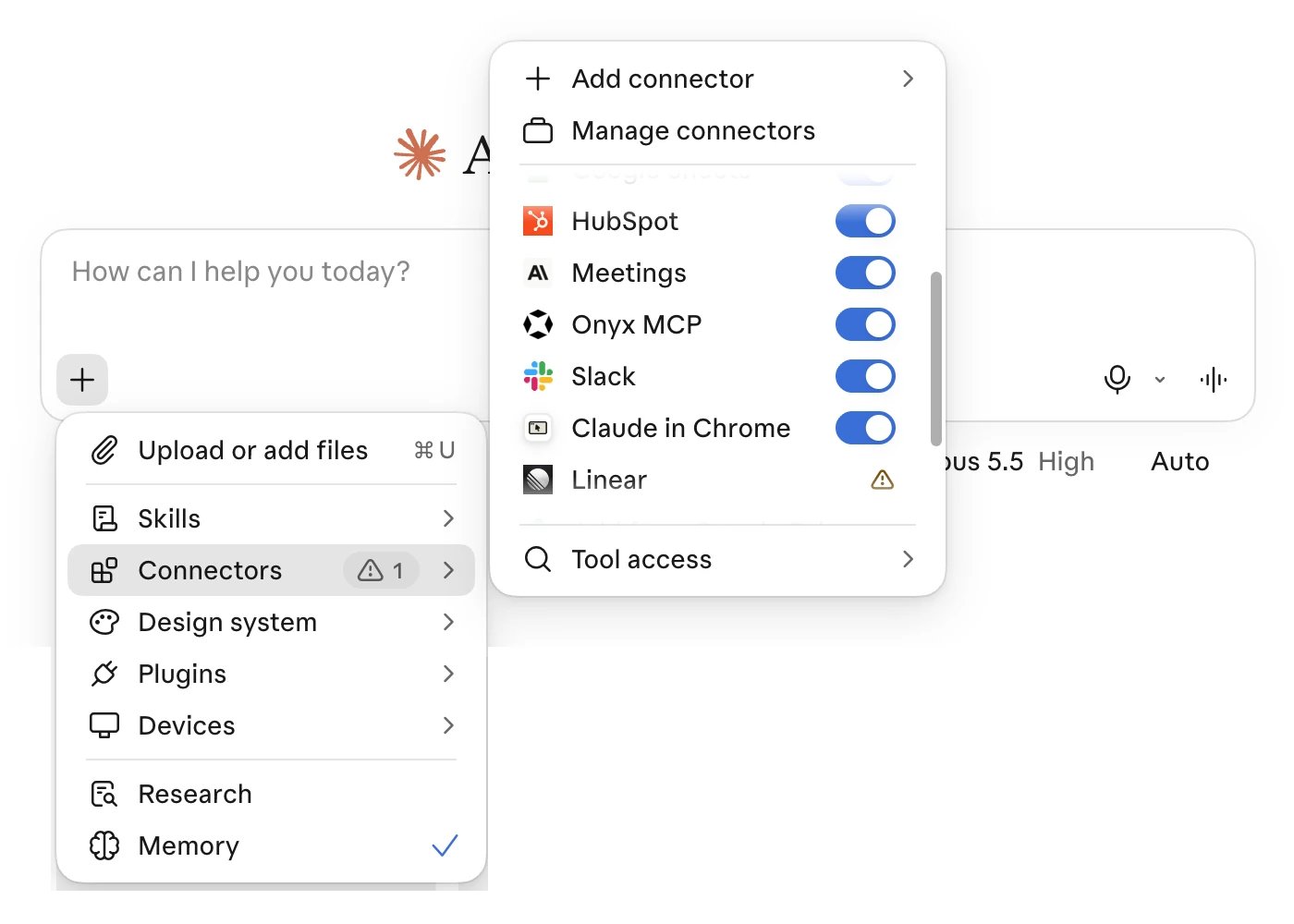
Add Onyx for an organization
An organization owner can add Onyx one time for all members.1
Open Add custom connector
Open Organization settings > Connectors and select Add > Custom > Web.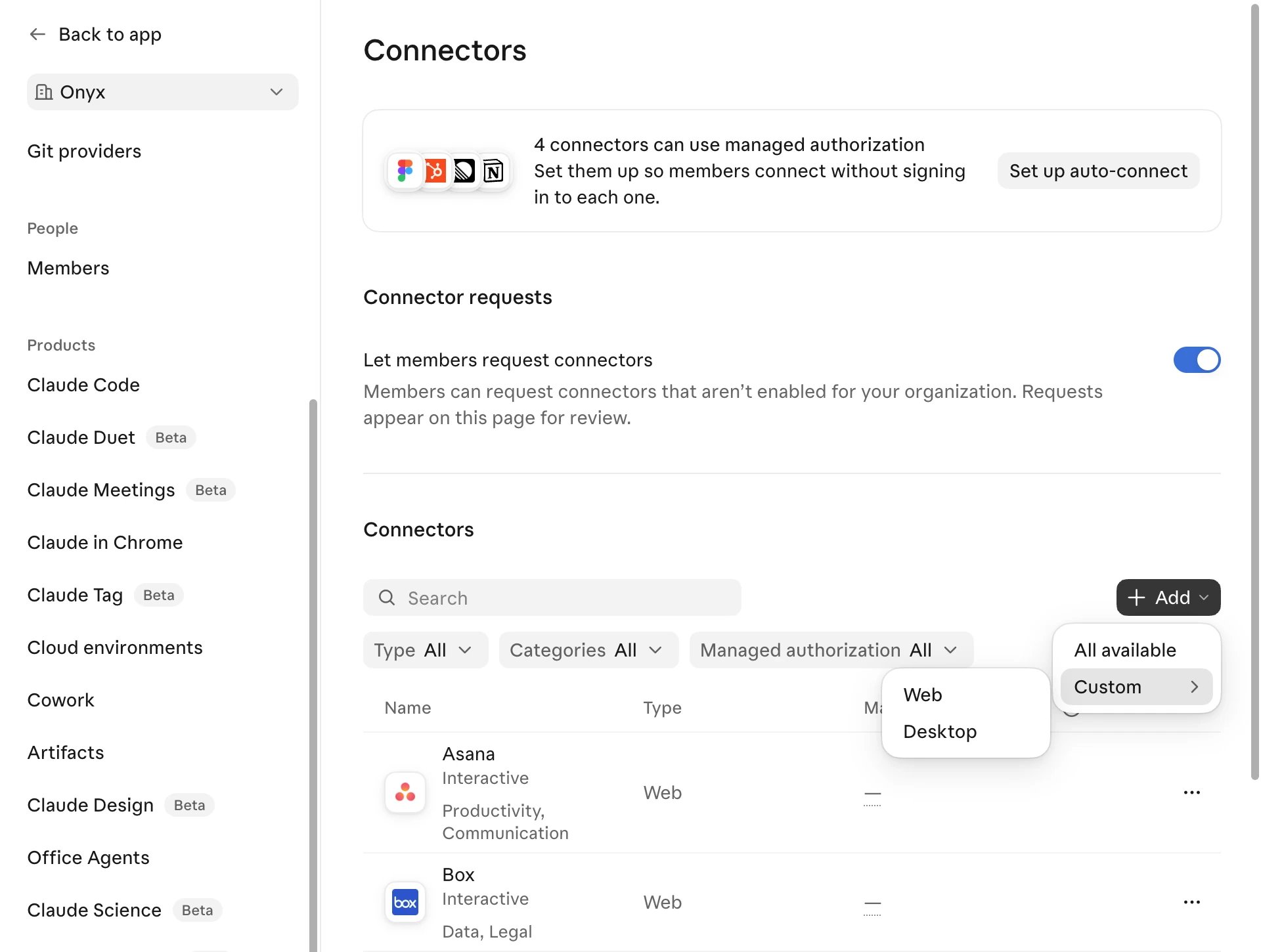
2
Enter the Onyx MCP URL
Name the connector Onyx, enter your Onyx MCP URL, and select Continue.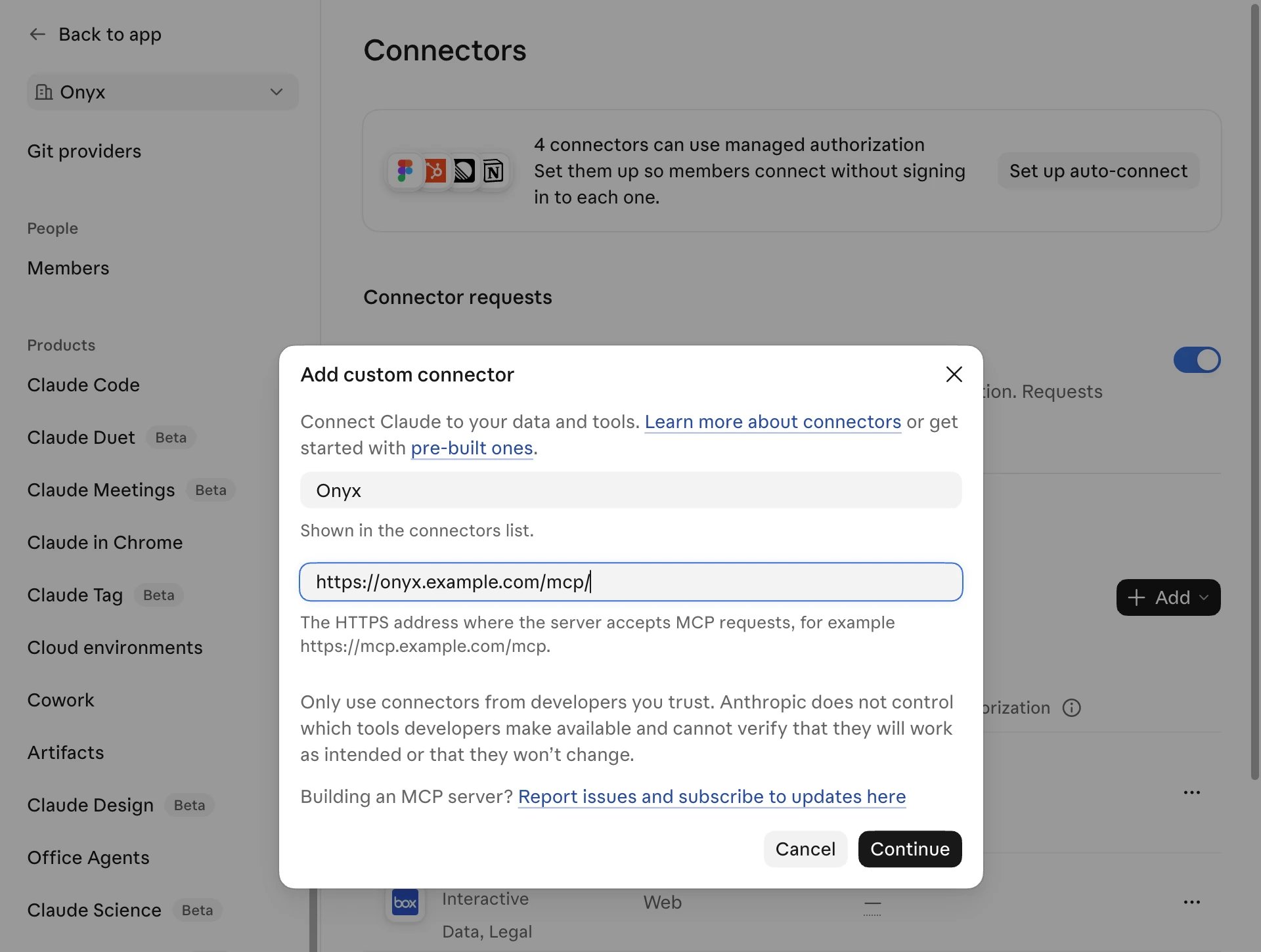
3
Keep the detected sign-in settings
Keep Sign in now and Use Claude’s published identity, as in the personal setup.
Select Add.