

How it works
The HubSpot connector indexes records from your HubSpot CRM. You choose which object types to index:- Tickets - Support tickets with their subject, content, and priority
- Companies - Company records with their domain, industry, and location
- Deals - Sales opportunities with their amount, stage, and close date
- Contacts - Contact records with their email, company, and job title
Setting up
Authorization
The connector signs in with the access token of a HubSpot private app.1
Create a private app
In HubSpot, go to Settings > Integrations > Private Apps and create a private app.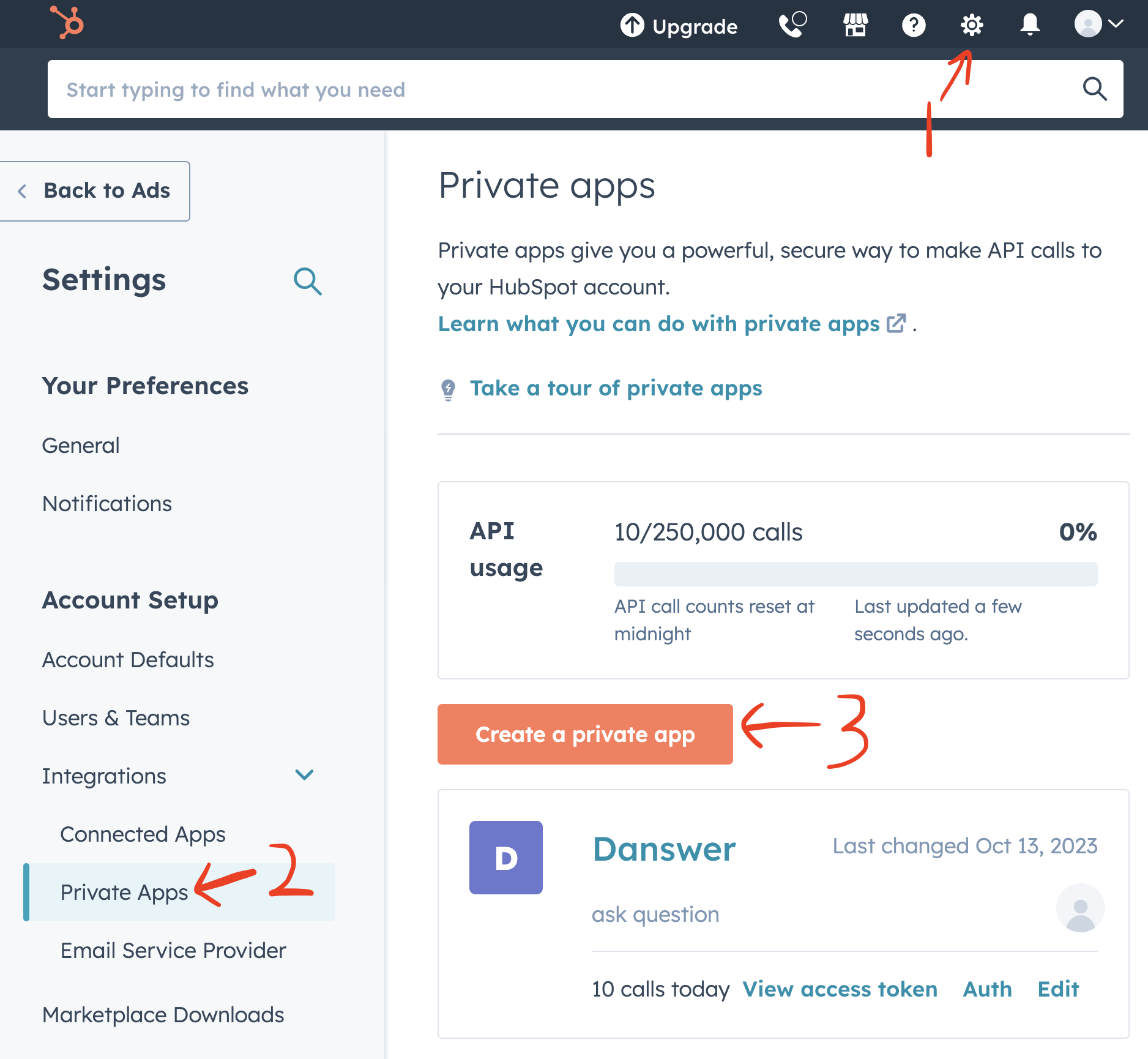
2
Select scopes
Under Scopes, grant the read scope of every object type you want to index.
Grant 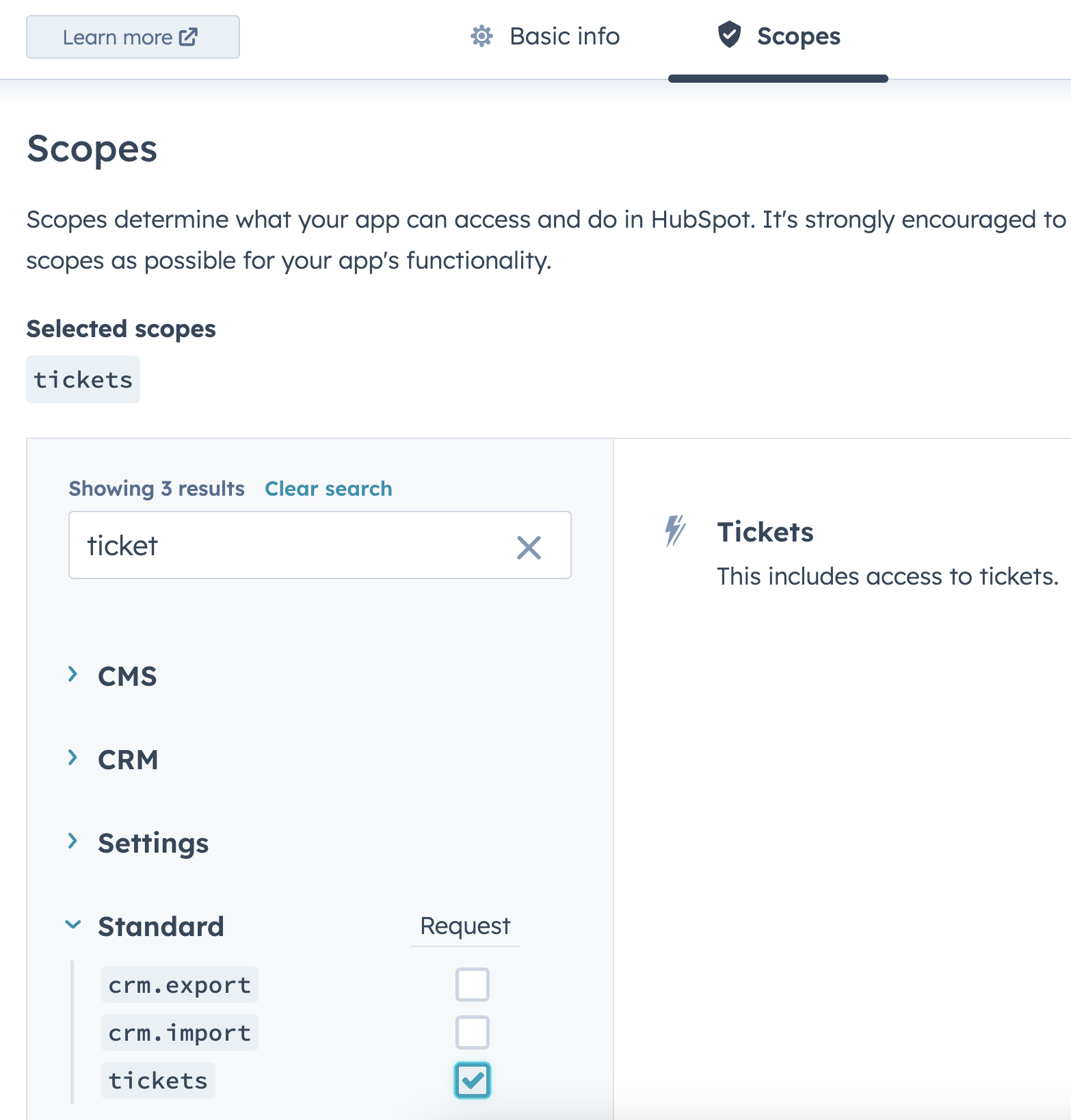
settings.users.read as well if you use Auto Sync Permissions.Grant the read scope of a type even if you do not index it when records of the indexed types link to it. Without it,
Onyx skips those links.
3
Copy the access token
Copy the access token that HubSpot shows when you create the app.
Indexing
1
Open the HubSpot connector
In the Onyx admin panel, open Add Connector and select HubSpot.
2
Enter the access token
Create a credential with the access token from above.
3
Choose object types
Select the object types to index. Leave every type selected to index the whole CRM.
4
Choose document access
Select Public, Private, or Auto Sync Permissions.
Auto Sync Permissions is available on Onyx Cloud and in the Enterprise Edition, and is the default there.
5
Connect
Click Connect. Onyx runs the connector checks below before it creates the connector.
Connector checks
Onyx probes the private app before it creates the connector and shows one row per check. A required check that fails blocks creation. The message names the missing scope.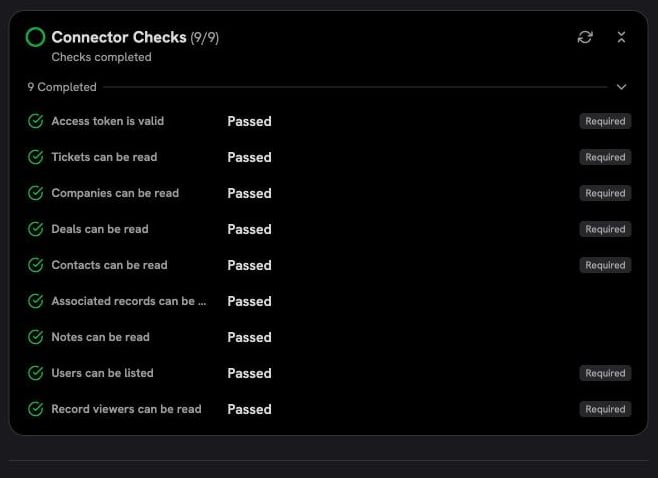
A read check only runs for the object types you selected. An empty portal passes every check,
since there is no record to probe.
Auto Sync Permissions
With Auto Sync Permissions, Onyx asks HubSpot which users may view each record and grants access to those users. A HubSpot user’s email address must match the user’s email in Onyx.- Deactivated HubSpot users and the private app itself are not granted access.
- A record that HubSpot reports no viewers for is granted to no one.
- Records become visible after the first permission sync completes, not when indexing finishes.
- HubSpot has no groups to sync. Onyx grants access to users only.
HUBSPOT_PERMISSION_DOC_SYNC_FREQUENCY in seconds to change the interval.
If you do not want to sync permissions, select Public or Private document access when you create the connector.
Private uses the Onyx user groups you assign to the connector. Neither option needs the settings.users.read scope.