

How it works
On each refresh, the connector lists the token’s available courses, then processes pages, assignments,
and announcements in that order.
Pages and assignments are included when their Canvas
updated_at falls in the indexing window.
Announcements are included when their posted_at falls in the window. Pages without updated_at,
assignments without updated_at, and announcements without posted_at are skipped.
Before you begin
You need:- The HTTPS URL of your Canvas site, such as
https://school.instructure.com - A Canvas user who can open every course you want Onyx to index
- Permission in Canvas to create an API access token for that user
- An Onyx administrator account
Configure Canvas
1
Create an access token
In Canvas, open Account → Settings (
/profile on your Canvas site). In Approved Integrations,
select New Access Token (sometimes labeled Add New Access Token).Enter a purpose such as Onyx Connector. Optionally set an expiration date.
Leave the expiration empty only if your institution allows non-expiring tokens.Generate the token and copy it immediately. Canvas does not show the full token again.Configure Onyx
1
Connect a Canvas account
In Onyx, go to Admin Panel → Connectors and select Canvas. Under Authentication Account,
select New Canvas Account and paste the token into API Token.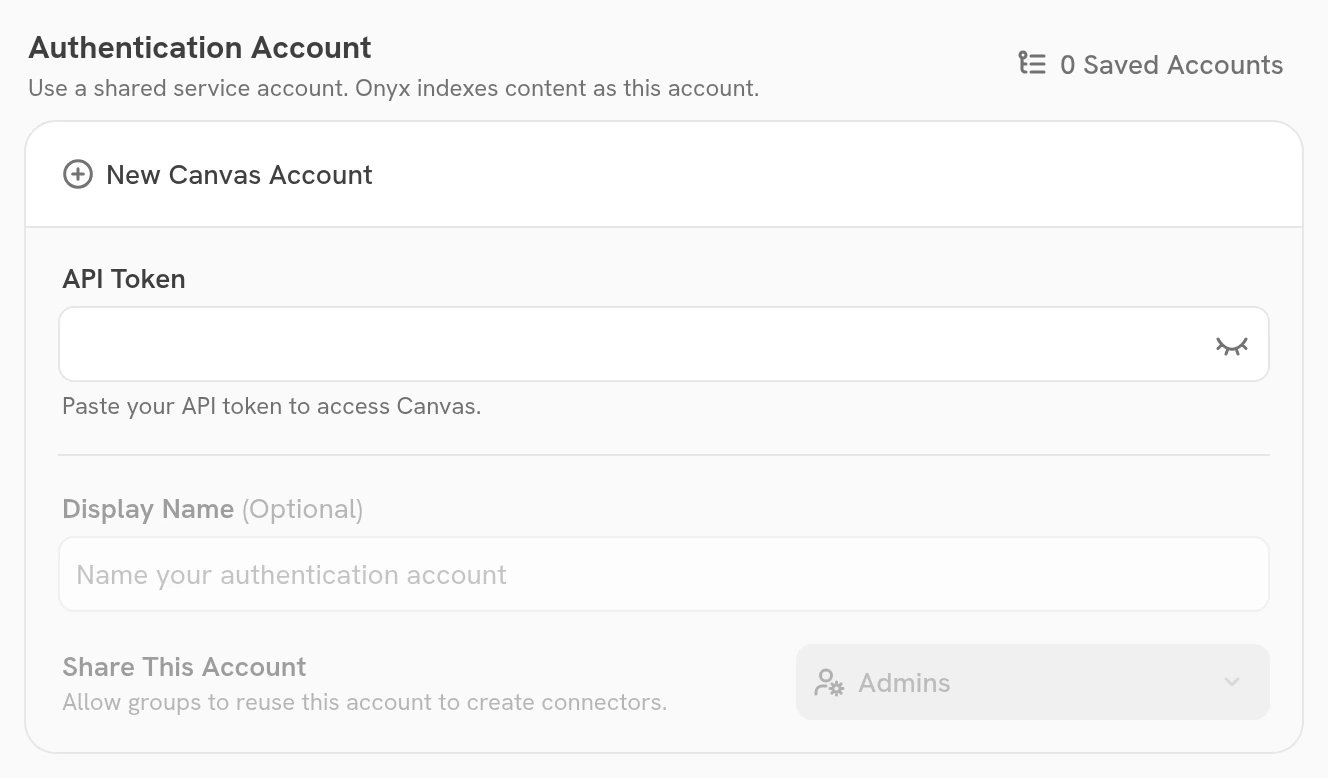
2
Enter the Canvas base URL
In Canvas Base URL, enter the site URL, such as 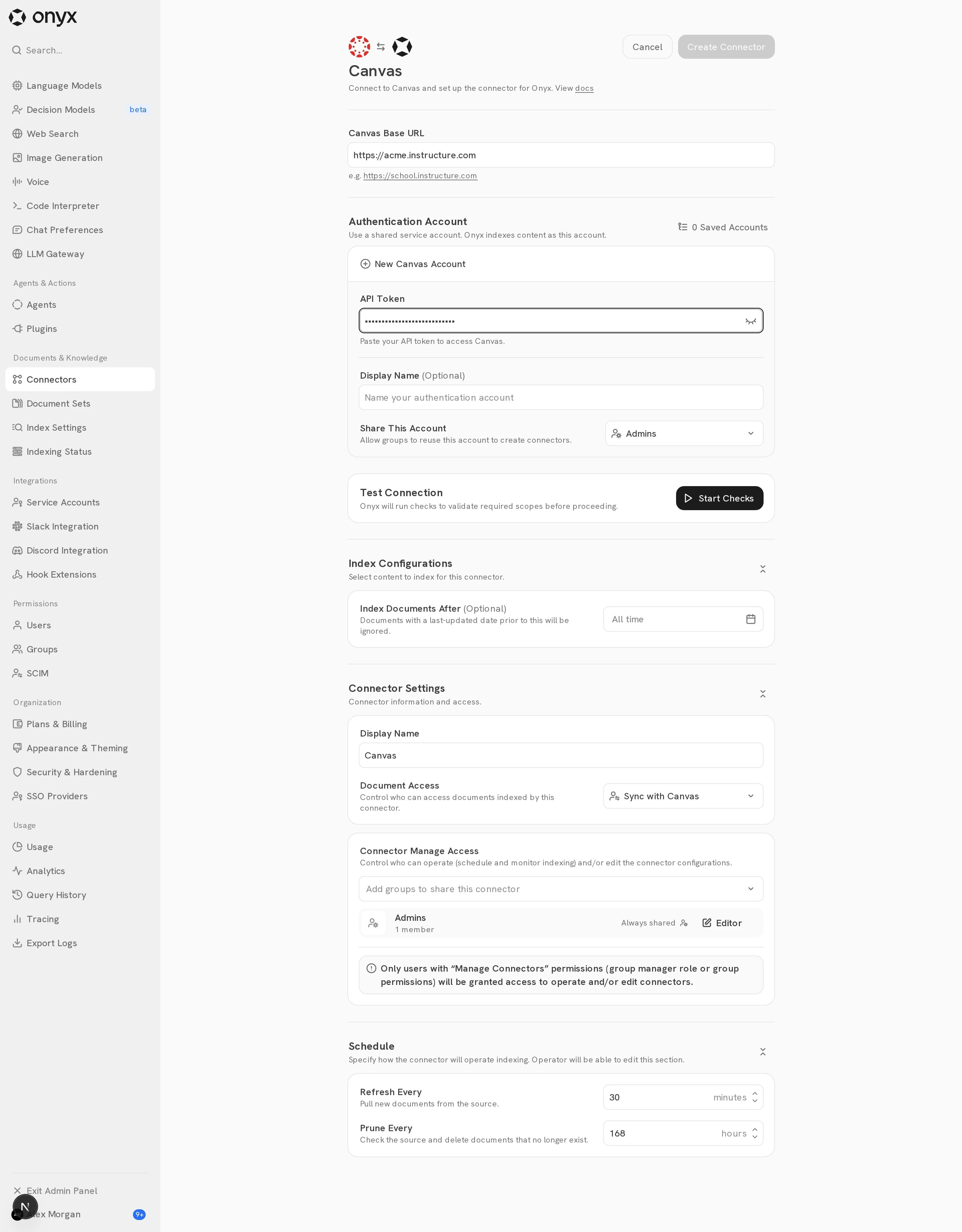
https://school.instructure.com.Use https. Do not use http. You can omit a trailing slash and /api/v1;
Onyx normalizes those if they are included.3
Choose who can see the content
Under Document Access, select Everyone in Your Organization, Specific Groups, or Sync with Canvas.
Specific Groups and Sync with Canvas are available on Onyx Cloud and Enterprise Edition.
4
Create and verify
Select Create Connector. Then open Admin Panel → Indexing Status, select the connector,
and confirm its first indexing attempt completes.
Sync with Canvas
With Sync with Canvas, Onyx maps Canvas visibility to Onyx users by email. Canvas user emails must match the users’ email addresses in Onyx. Users Canvas returns without an email are not granted access. The token must be able to read course roster emails. When you create a Canvas connector with Sync with Canvas, Onyx probes the first available course’s roster and rejects the connector if no emails are visible.
Courses Canvas marks as public, or public to authenticated users,
also grant access to an all-users group when the token can list users on the Canvas account.
If the token cannot list account users, those course-wide items are limited to the course roster.
Section-specific announcements and override-only assignments stay restricted even on a public course.
Group sync
With Sync with Canvas, Onyx also builds user groups from Canvas so that access survives roster changes without a re-index. It creates four kinds of group:
Sections and Canvas groups are only created where something refers to them: a section enrollment,
a section-targeted announcement, or an assignment override.
A Canvas group that no assignment overrides to is not synced.
Document permissions and groups both refresh every 30 minutes.
Set
CANVAS_PERMISSION_DOC_SYNC_FREQUENCY and CANVAS_PERMISSION_GROUP_SYNC_FREQUENCY (seconds) to change them.
Permissions are attached during the initial index,
so a new connector is searchable by the right people from its first indexing attempt.
Limits
The connector has no file-size cap because it indexes no files. It reads page,
assignment and announcement text through the Canvas API and does not download course attachments.
Troubleshooting
The credentials are rejected or the token is expired
The credentials are rejected or the token is expired
An error such as
Canvas API token is invalid or expired (HTTP 401) means the token is missing, revoked,
or past its expiration. Create a new access token in Canvas and update the Onyx credential.
Confirm Canvas Base URL is the HTTPS site URL for the same Canvas instance that issued the token.The token does not have sufficient permissions
The token does not have sufficient permissions
Canvas API token does not have sufficient permissions (HTTP 403) means the Canvas user cannot call the API being
used. Indexing needs access to the user’s available courses and to published pages, published assignments,
and active announcements in those courses.
Permission sync additionally needs roster email visibility on at least one available course.The Canvas base URL is rejected
The Canvas base URL is rejected
The URL must include a host and must use
https. Enter the Canvas site,
for example https://school.instructure.com, not an http URL.A course, page, assignment, or announcement is missing
A course, page, assignment, or announcement is missing
Confirm the token’s Canvas user can open the item. Onyx only lists courses in the
available state,
only published pages, only published assignments, and only active announcements.
Pages and assignments without updated_at, and announcements without posted_at, are skipped on refresh.
A course that returns HTTP 404 is skipped for that indexing attempt.Permission sync fails at connector creation
Permission sync fails at connector creation
Confirm you are using Onyx Cloud or Enterprise Edition.
Reconnect with a token that can read course users with email addresses. Student tokens usually fail this check.
Users cannot see content they can open in Canvas
Users cannot see content they can open in Canvas
Confirm the user’s Canvas email matches their Onyx email,
and that Canvas returned an email for that user on the course roster. Invited and active enrollments are included;
other enrollment states are not.
Override-only assignments and section-specific announcements are limited to those targets plus teachers, TAs,
and designers.
Public Canvas courses are limited to the course roster
Public Canvas courses are limited to the course roster
The token cannot list account users.
Public-course pages and other course-wide items then use the course roster only.
Use a Canvas admin token if you need the all-users mapping for public courses.